
In This Guide...
What is Video Interviewer?
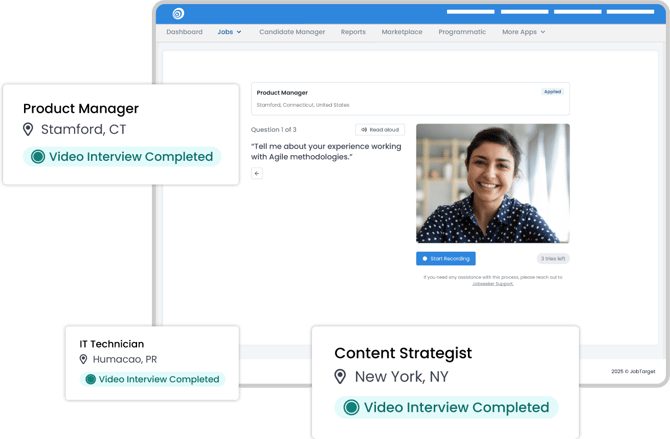
JobTarget’s Video Interviewer simplifies early-stage hiring by replacing manual screenings with automated, on-demand interviews. Applicants will be automatically invited to record responses to your custom-built questionnaires, giving you additional insights into the candidates as you review applications.
This helps you...
- Accelerate your hiring by automating screening.
- Prioritize engaged candidates (and filter out bots.)
- Get insights beyond the applicant’s resume.
Navigating Video Interviewer
Accessing Video Interviewer
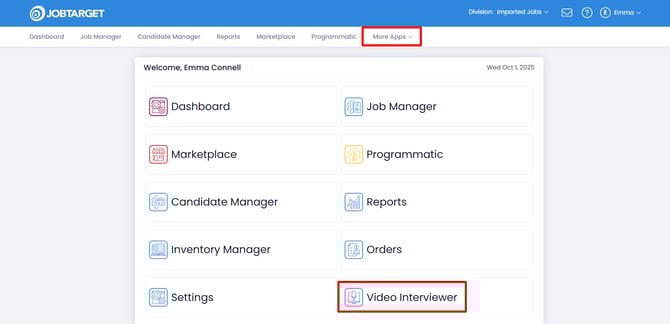
You can access Video Interviewer in one of three ways:
- Click 'Video Interviewer' in the JobTarget dashboard.
- Click 'More Apps' in the top navigation bar.
- If using JobTarget within your ATS, click the menu button in the upper right-hand corner, then click 'Video Interviewer.'
Navigating the Video Interviewer
-
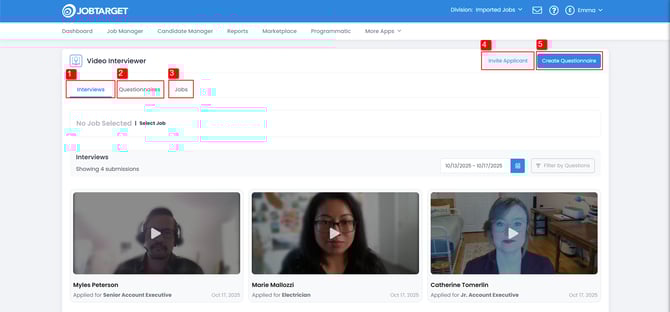
Interviews: This is the home tab of the Video Interviewer app. This shows all completed Video Interviews within the selected date range, defaulting to the last 30 days.
- Questionnaires: This tab provides a list view of all Questionnaires created on your account.
- Jobs: This tab provides a list of all your jobs (by default, filtered to show only Open jobs), which Questionnaire (if any) is tied to it, and how many completed Interviews it received.
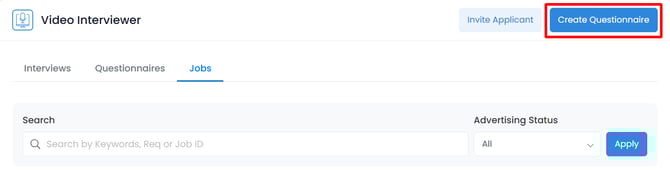
- Invite Applicant: This button allows you to manually invite a candidate by email to complete one of your video interview questionnaires.
- Create Questionnaire: This button allows you to build a new questionnaire from scratch, or preview / customize a pre-made questionnaire template.
How to Use the Video Interviewer
Creating the right interview experience is key to higher completion and better
insights.
🎯See our Video Interviewer Best Practice Guide for more guidance on setting up your Interview Questionnaire.
Create a Questionnaire
Note: To review a list of all questionnaires, click into the 'Questionnaires' tab on the Video Interviewer app.
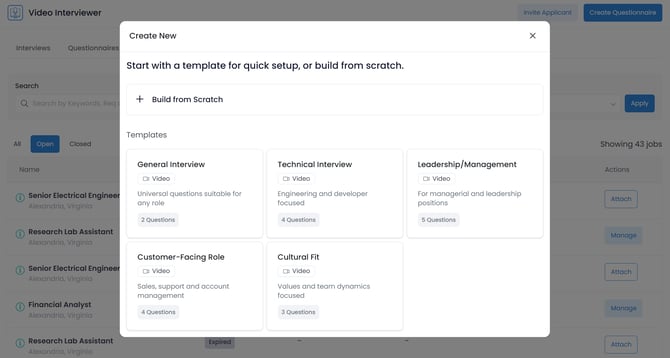
- Open the Video Interviewer app.
- Click the 'Create Questionnaire' button located in the top right corner of the Video Interviewer interface.
- Choose and customize one of our suggested Templates, or click 'Build from Scratch.'
- Enter a questionnaire name that clearly outlines the interview’s goal or the roles it targets.

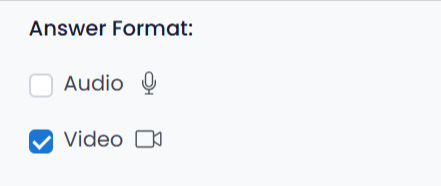
- Select ‘Video’ or 'Audio' to determine the answer format.
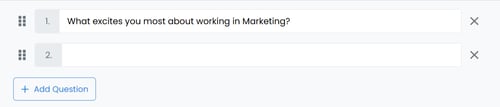
- Enter your desired questions to gain the insights you need from candidates.
- Enter a questionnaire name that clearly outlines the interview’s goal or the roles it targets.
- Click 'Save'.
Add a Questionnaire to your Job
- Navigate to the Video Interviewer App.
- Search or filter to locate the job you would like to attach a questionnaire to.
- Click 'Attach.'

- Select the Questionnaire you would like to attach.
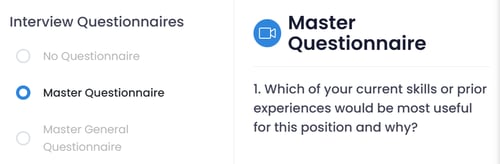
- You're all set! Your selection will save automatically.
- To adjust or remove the questionnaire, simply click 'Manage' and make your updated selection.

- Alternatively... Open the 'Questionnaires' tab.

- Locate the Questionnaire you would like to use.
- Click 'Add to Job' .
Locate any and all jobs you would like to attach the questionnaire to.
- Click 'Select' next to the desired job to attach the questionnaire.
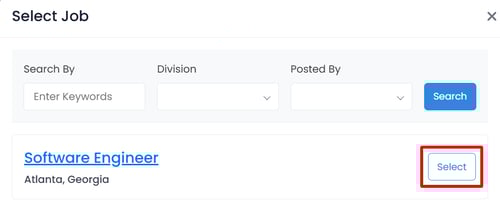
- You're all set!
- To remove an attached questionnaire from a job in the Questionnaires tab, simply click 'Detach' in the Select Job pop-up.

⭐Best Practice: Add the questionnaire to the job prior to advertising.
Candidate Review
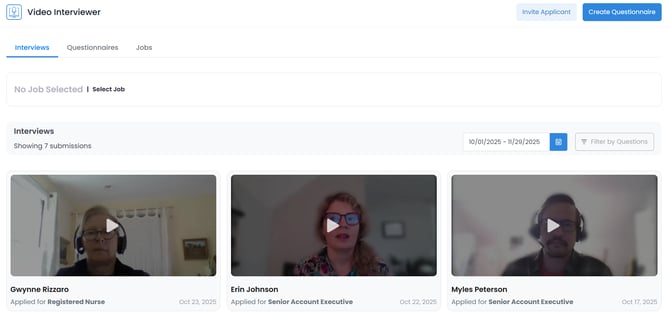
When you open the Video Interviewer you will be defaulted to the 'Interviews' tab. This provides an overview of all completed Video Interviews.
-
Click 'Select Job', and choose your desired Requisition to filter your results to only video interviews for that position.

- If a job is selected, you can click 'Filter by Questions' to choose which question you would like highlighted.
- If a job is selected, you can click 'Filter by Questions' to choose which question you would like highlighted.
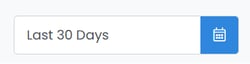
- Click the calendar icon to adjust the date-range filter. This will default to show only video interviews completed within the last 30 days.
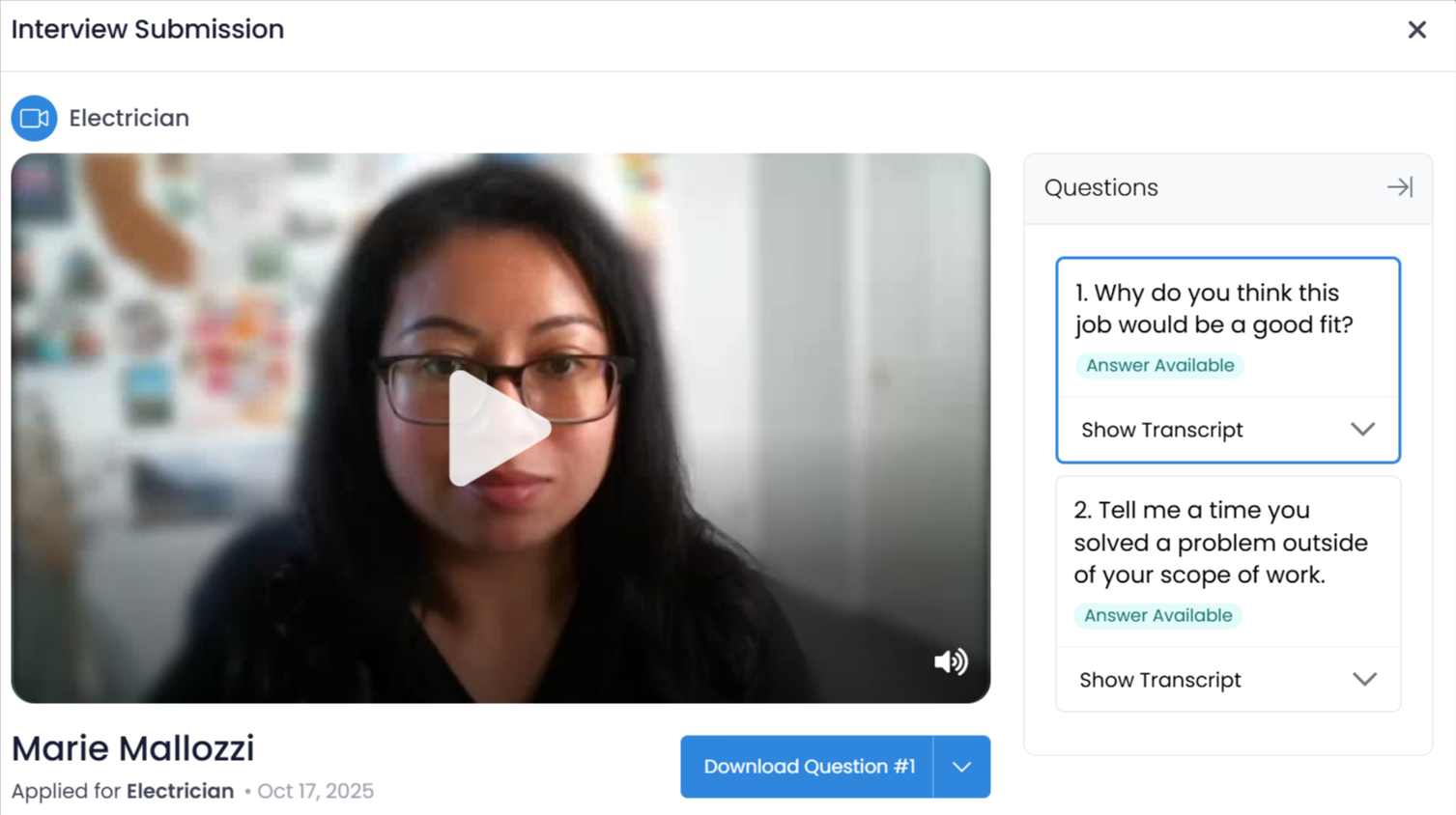
- Click into any candidate to pull up their full interview, including transcripts and the option to download their videos.
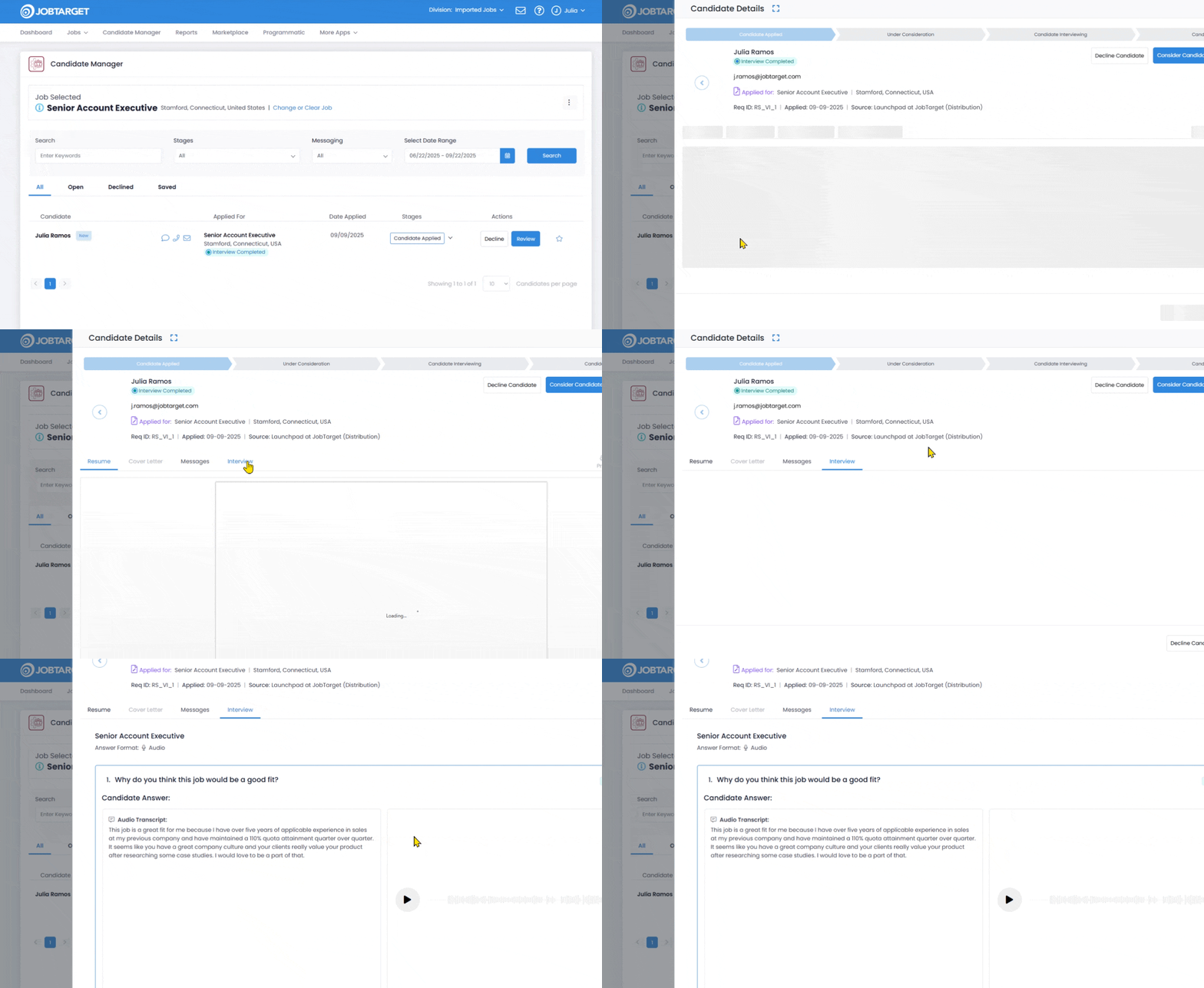
In the JobTarget Candidate Manager... you can see the Video Interview status for each applicant.
Video Interview Statuses
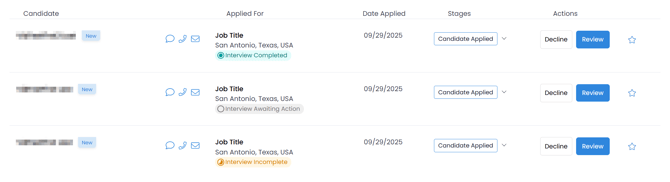
- Interview Completed: The candidate completed the Video Interview.
- Interview Incomplete: The candidate has not completed the Video Interview.
- Interview Awaiting Action: The candidate received the Video Interview email invitation, but has not acted on the interview.
Review the Interview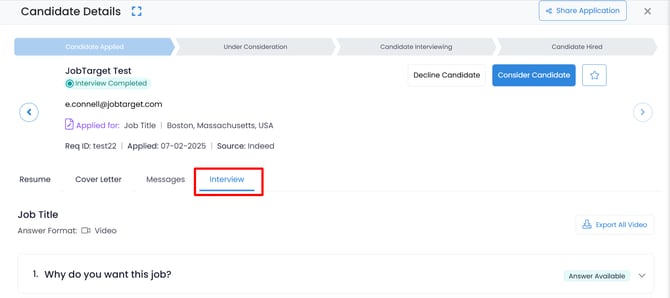
- In the Candidate Manager click on the 'Interview Completed' badge next to the applicants name.

- Alternatively, open the candidate's profile then click the 'Interview' tab.
- From here you can review the candidate's answers to each individual question on the questionnaire by watching the video, listening to the audio, or reading the transcript.
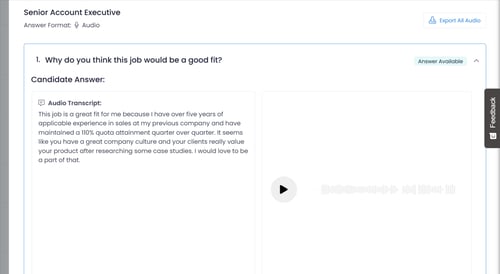
- Click 'Export All Video' or 'Export all Video' to download the candidate's answers.
- If interested, message the candidate through the job seeker messaging feature, or contact them directly.
💡Want more advice on getting the most out of Video Interviewer?
See our Best Practices Guide!