
In This Guide...
- What is the Organic Site Manager?
- Accessing the Organic Site Manager
- How to Use the Organic Site Manager
What is the Organic Site Manager?
The Organic Site Manager is a product, available through the Marketplace, that can be enabled in order to automatically distribute your jobs to your choice of organic job sites.
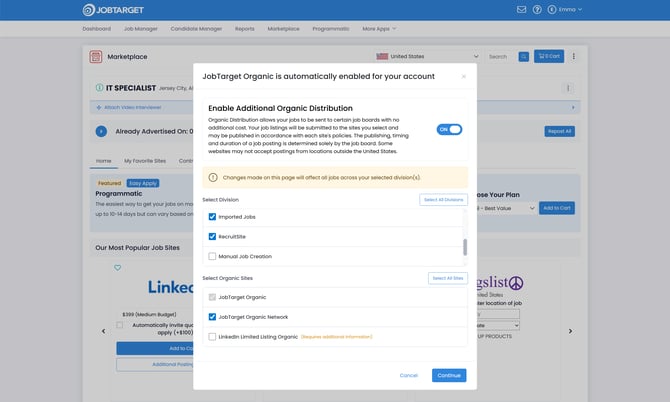
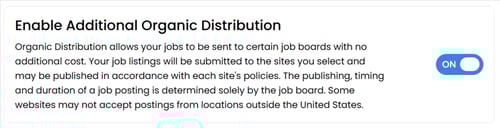
The Organic Site Manager allows your jobs to be sent to certain job boards with no additional cost. Your job listings will be submitted to the sites you select and may be published in accordance with each site's policies.
The publishing, timing, and duration of an Organic job posting are determined solely by the job board and visibility is not guaranteed. Some websites may not accept Organic postings for locations outside the United States.
With the Organic Site Manager, you can...
- Select which of your division(s) will be included for Organic Distribution.
- Select which Organic options you want your jobs distributed to.
- Set it and forget it! Once it is enabled, the Organic Site Manager will automatically distribute your jobs according to the settings you chose.
- Focus your time and energy on other aspects of your recruiting strategy!
Accessing the Organic Site Manager
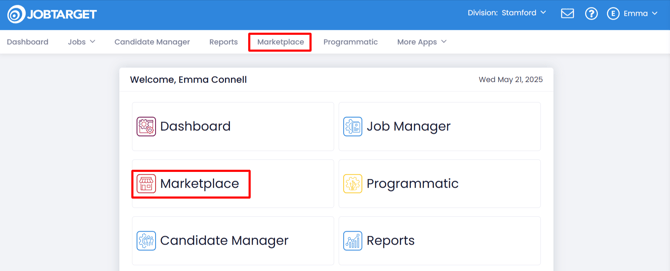
- Open the Marketplace.
- You can Access the JobTarget Marketplace in one of three ways:
- Click 'Marketplace' in the JobTarget dashboard.
- Click 'Marketplace' in the top navigation bar.
- If JobTarget is integrated with your ATS/HRIS, once you enter JobTarget you may need to click the menu button in the upper right-hand corner, then click 'Marketplace.'
- You can Access the JobTarget Marketplace in one of three ways:
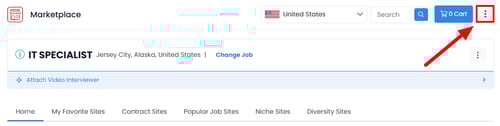
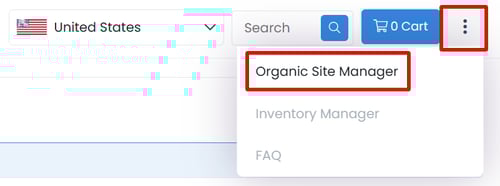
- Click on the 3 Dots (Kebab Menu) in the upper right-hand corner.
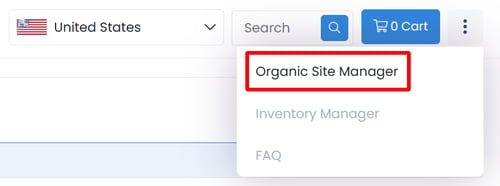
- From the dropdown menu, click 'Organic Site Manager.'
How to Use the Organic Site Manager
Enabling Organic Distribution
- Open the Marketplace (see above: Accessing the Organic Site Manager)
- Click the 3 Dots (Kebab Menu) in the upper right-hand corner next to 'Cart,' then click ‘Organic Site Manager’ in the dropdown menu.
- Toggle the 'Enable Additional Organic Distribution' switch from 'OFF' to 'ON.'
- ⚠️Only the Admin(s) on your account can enable Organic Distribution.
- ⚠️Your account must be set-up to automatically import your requisitions into JobTarget in order to enable Organic Distribution.
- If you are unable to turn on Organic Distribution, you will be prompted within the pop-up on how to proceed.
- Use the check-boxes under 'Select Division' to choose which Division(s) you would like to be included for automatic Organic Distribution.
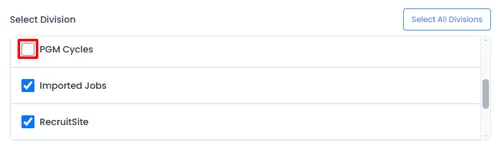
- Depending on your account setup, you may or may not have more than one division used to organize your jobs. You can manage divisions in your Profile Settings.
- Use the check-boxes under 'Select Organic Sites' to choose which Organic options you would like your jobs distributed to.
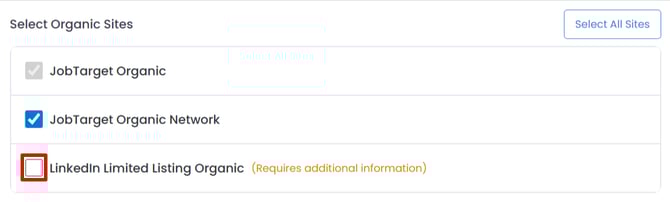
- If LinkedIn Limited Listing Organic is selected you will need to provide your LinkedIn Company ID.
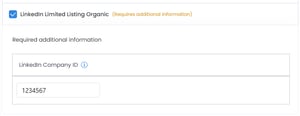
- If LinkedIn Limited Listing Organic is selected you will need to provide your LinkedIn Company ID.
- Click 'Continue', then 'Confirm.'

Updating the Organic Site Manager Settings
At any time you can enter the Organic Site Manager to modify your chosen divisions or sites!
- Open the Organic Site Manager following the same steps outlined in 'Enabling Organic Distribution.'
- Change your chosen Divisions and/or Job Sites.
- Click continue, then confirm.
- You're all set!
Disabling the Organic Site Manager
- Open the Marketplace (see above: Accessing the Organic Site Manager)
- Click the 3 Dots (Kebab Menu) in the upper right-hand corner next to 'Cart.'
- Click ‘Organic Site Manager’ in the dropdown menu.

- Toggle the 'Enable Organic Distribution' switch from 'ON' to 'OFF.'

- Click 'Continue', then 'Confirm.'