
NOTE: This user guide is specific to one-time Programmatic postings purchased from the Marketplace. For information on contracted Programmatic campaigns, see: Programmatic+ User Guide
In This Guide...
- What is Programmatic?
- Programmatic Video Walkthrough
- How To Post
- Choosing the Right Budget
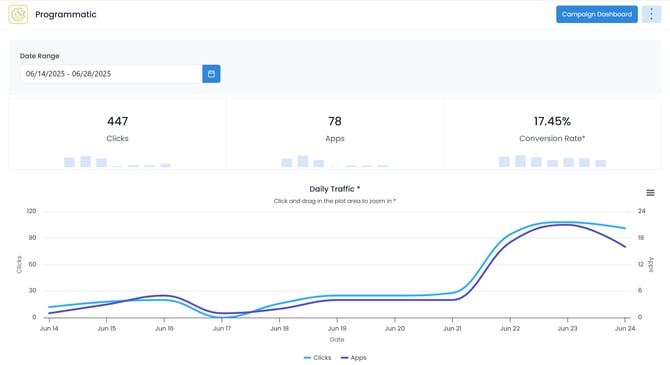
- Programmatic Dashboard & Metrics
What is Programmatic?
JobTarget's Programmatic is an algorithm-based product including 100+ job sites. Programmatic helps by automating your advertising and using performance data to drive your jobs to the best-performing sites.
💡Single Postings vs Programmatic+
Programmatic can be purchased in the Marketplace as a one-time single-job posting, or as a monthly campaign for more flexibility and multi-job needs.
Contact your Relationship Manager for more details on Programmatic options!
How Programmatic Works...
-
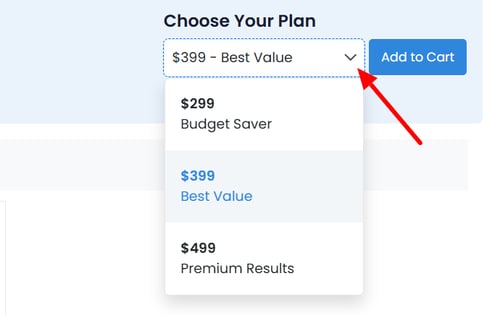
When purchasing a Programmatic posting through the Marketplace you will have 3 budget options to choose from.
-
Once advertised, the algorithm will distribute the job to a wide variety of top job sites.
-
The budget will be spent on a cost-per-click basis.
- Your job will stay live until the budget has been exhausted, the job is manually stopped, or after 30 days, whichever comes first.
- If the job is stopped due to budget exhaustion, you will be notified via email.
Programmatic Video Walkthrough
💡For more video resources, check out Jobtarget Academy!
How To Purchase a Programmatic Posting
- Navigate to the JobTarget Marketplace.
- Select the job you would like to advertise.
- See our Marketplace User Guide for detailed steps.
- Locate Programmatic.

- Programmatic can be found featured on the home page of the Marketplace, or by searching.
- Click into the 'choose your plan' dropdown menu to select your budget.
- See: Choosing the Right Budget or speak to your relationship manager for advice on getting the most out of your Programmatic posting!
- Click 'Add to Cart', then click the 'Cart' button in the upper right-hand corner.

- Complete the checkout process and you're all set!
Choosing The Right Budget
Programmatic Single Postings are available in 3 budget options.
Ask yourself these questions before choosing the right option for you...
- How quickly do you need the role filled?
- Urgent timelines may require a higher budget.
- Is this role specialized or hard-to-fill?
- Niche skills or competitive markets often require more spend to reach the right candidates.
- What experience level is required?
- Senior or highly experienced candidates are a smaller pool and may cost more to reach.
- Is this role competitive in your market?
- High-demand roles require stronger visibility to stand out against other employers.
Remember, Programmatic spends your budget on a cost-per-click basis, the higher the budget the more clicks you can get!
💡Looking for strategic advice? Reach out to your Relationship Manager!
Programmatic Dashboard & Metrics
Accessing the Programmatic Dashboard
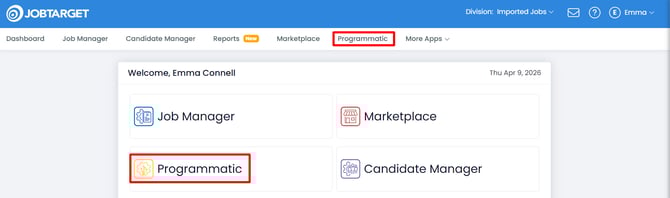
The programmatic Dashboard lets you manage your Programmatic postings and review their performance.
You can access the Programmatic Dashboard in one of three ways:
- Click 'Programmatic' in the JobTarget dashboard.
- Click 'Programmatic' in the top navigation bar.
- If JobTarget is integrated with your ATS/HRIS, you may need to click the menu button in the upper right-hand corner, then click 'Programmatic.'
Reviewing Programmatic Metrics and Insights
Date Range Filter
-
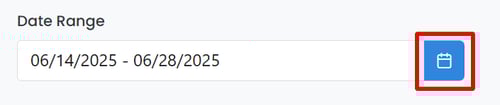
The date range for your metrics and insights will always default to the last 3 months. This can be adjusted as needed by clicking on the calendar icon.
Overall Metrics
-
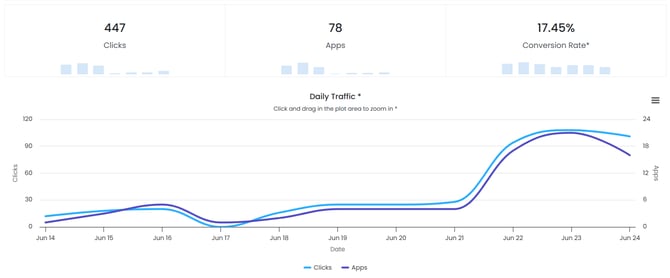
Clicks: The total cumulative number of clicks received across all active Programmatic Postings during the selected Date Range.
- Apps: The total cumulative number of applications received across all active Programmatic Postings during the selected Date Range.
- Conversion Rate: The Average conversion rate (click-to-apply ratio) for the selected cycles.
Daily Traffic
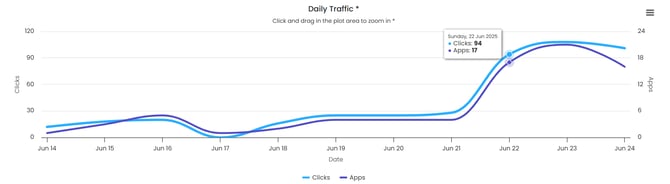
The Daily Traffic Graph shows the clicks and applications received for each day of the selected date-range. Hovering over a specific date column on the graph will show you the specific numbers for that date.
Viewing and Managing Programmatic Postings
- Open your Programmatic+ Dashboard
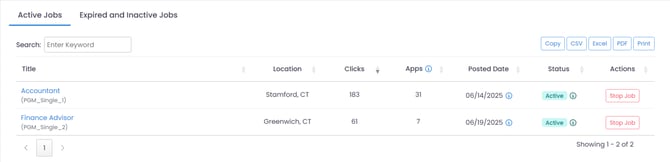
- Scroll down to the 'Active Jobs' section.

- Switch to the 'Expired and Inactive Jobs' tab to view or repost previously advertised jobs.
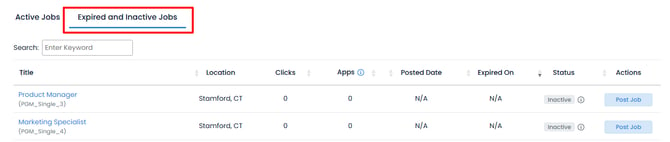
- Switch to the 'Expired and Inactive Jobs' tab to view or repost previously advertised jobs.
- Search by keyword to locate a specific job.

- From here you can review the Location, Clicks, Apps, Posted Date, and Status.

- This data can be copied, exported, or printed.

- This data can be copied, exported, or printed.
- To stop a currently active or paused job, click 'Stop Job.'

- Note: After clicking 'Stop Job, ' it may take up to 72 hours for your posting to come down on all sites.
Posting Duration
JobTarget's Programmatic is a budget-based product. It is designed to obtain as much traffic as possible for your posted role, and the budget will be spent on a cost-per-click basis.
When you purchase an individual Programmatic posting through the JobTarget Marketplace there is no guaranteed duration. This is because the job will remain active until one of the following occurs:
- The budget (amount spent on the posting) is exhausted.
- The posting is stopped manually.
- Or the posting has been active for 30 days, whichever occurs first.
The average duration for a single Programmatic posting through the Marketplace is 10-14 days, but can vary based location and type of role.
Once your Programmatic posting expires, a notification email will be sent to the user who purchased the posting in the Marketplace.